TradingView Charts in Stolo for F&O Traders
Stolo runs TradingView's charting library on its own live data feed, so you get the drawing tools, indicators and timeframes you already know, for every Indian F&O instrument: indices, stocks, futures and individual option strikes. Multi-pane layouts let you watch several of them at once, which is what multi-leg trading needs.
The problem it solves
Trading options well means keeping eyes on more than one thing: the underlying, and often two option strikes. A single chart forces you to switch, and you lose the moment. Stolo's TradingView integration gives you real charts for the strikes themselves and a layout that shows them side by side.
Where you find it
- Per instrument. Every index, stock, future and option strike opens as a TradingView chart in Stolo.
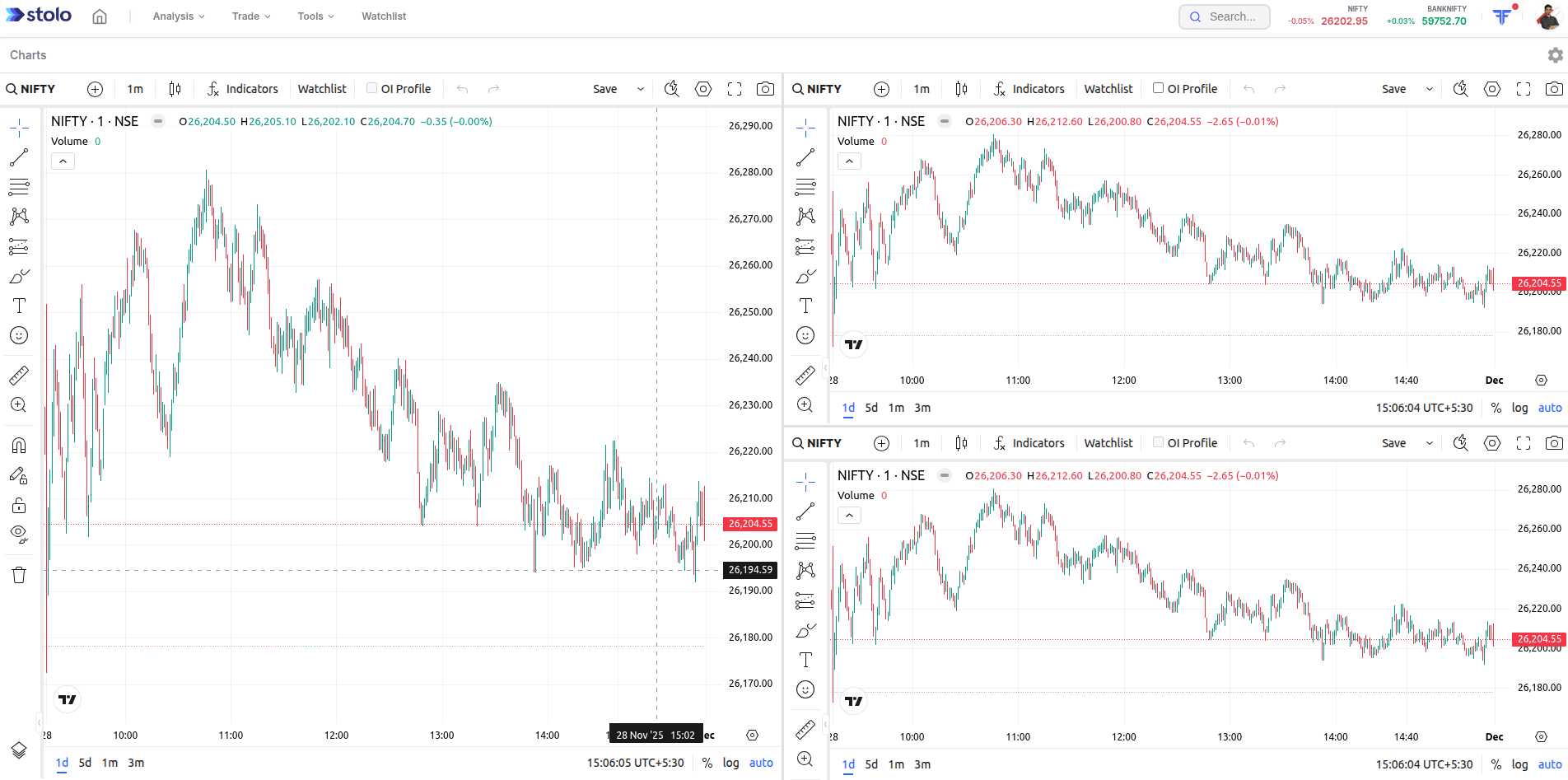
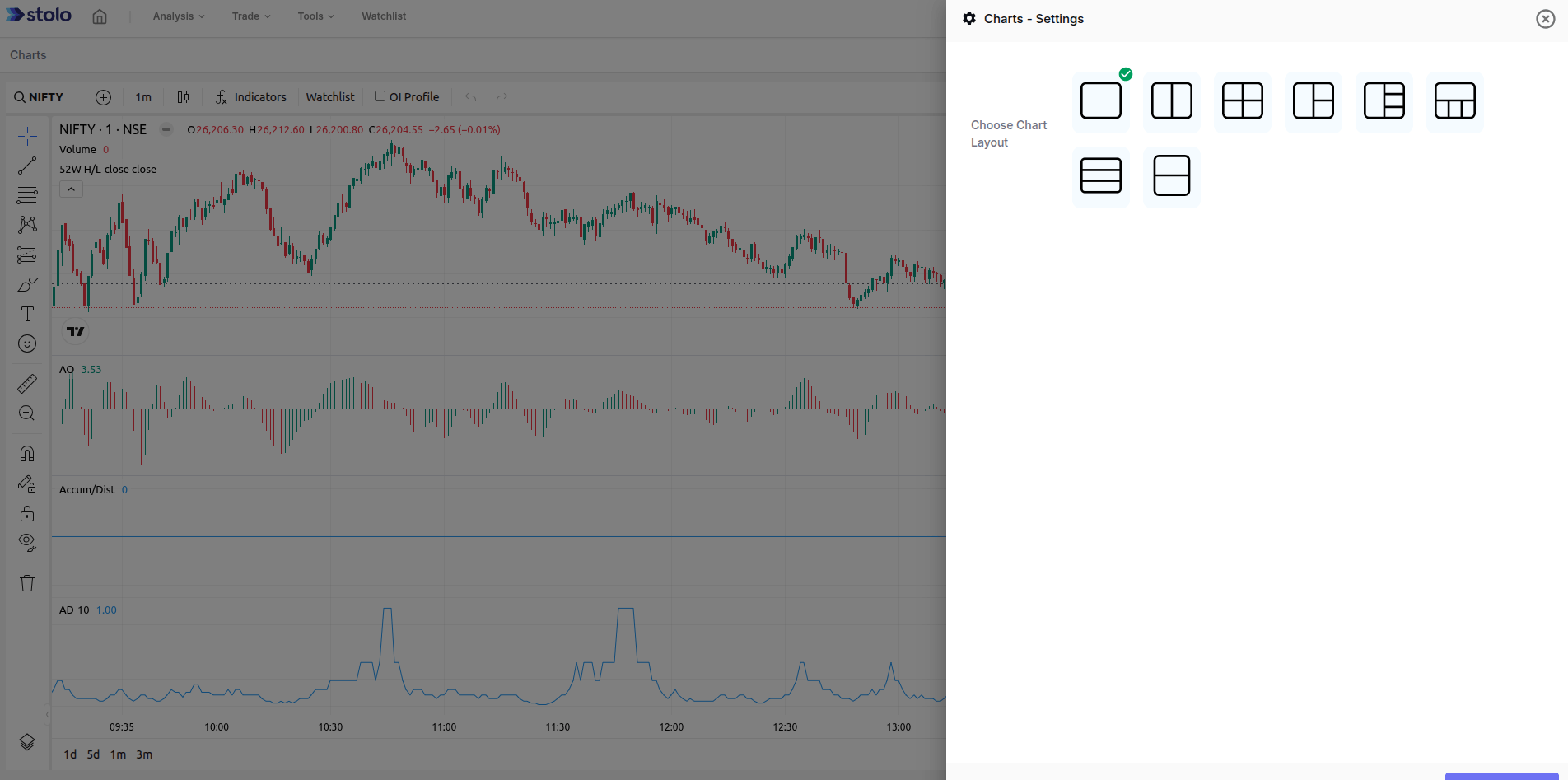
- Multi-pane workspace. The dedicated Instrument Charts view with a layout picker for one to four panes.
- Market view. TradingView charts for the indices sit alongside the rest of the market pulse tools.
Key terms explained
| Term | What it means |
|---|---|
| Charting library | TradingView's embeddable chart engine, running on Stolo's data. |
| Pane | One independent chart in a multi-layout, with its own instrument and timeframe. |
| Study | An indicator or drawing applied to a chart. |
| Compare | Overlaying a second symbol, usually as a percentage line. |
| Strike chart | A TradingView chart of a specific call or put's premium. |
A worked example
You are running a NIFTY bull call spread: long the 22,000 CE, short the 22,200 CE. You set a three-pane layout:
- Pane 1: NIFTY 5-minute, to watch the underlying trend.
- Pane 2: 22,000 CE premium chart, where your long leg's own support and resistance are.
- Pane 3: 22,200 CE premium chart, the short leg you need to defend.
When NIFTY stalls at a level and the 22,200 CE premium starts basing rather than falling, you see the short leg's risk building before it shows up in the spread's P&L, and you can act.
How to use it in Stolo
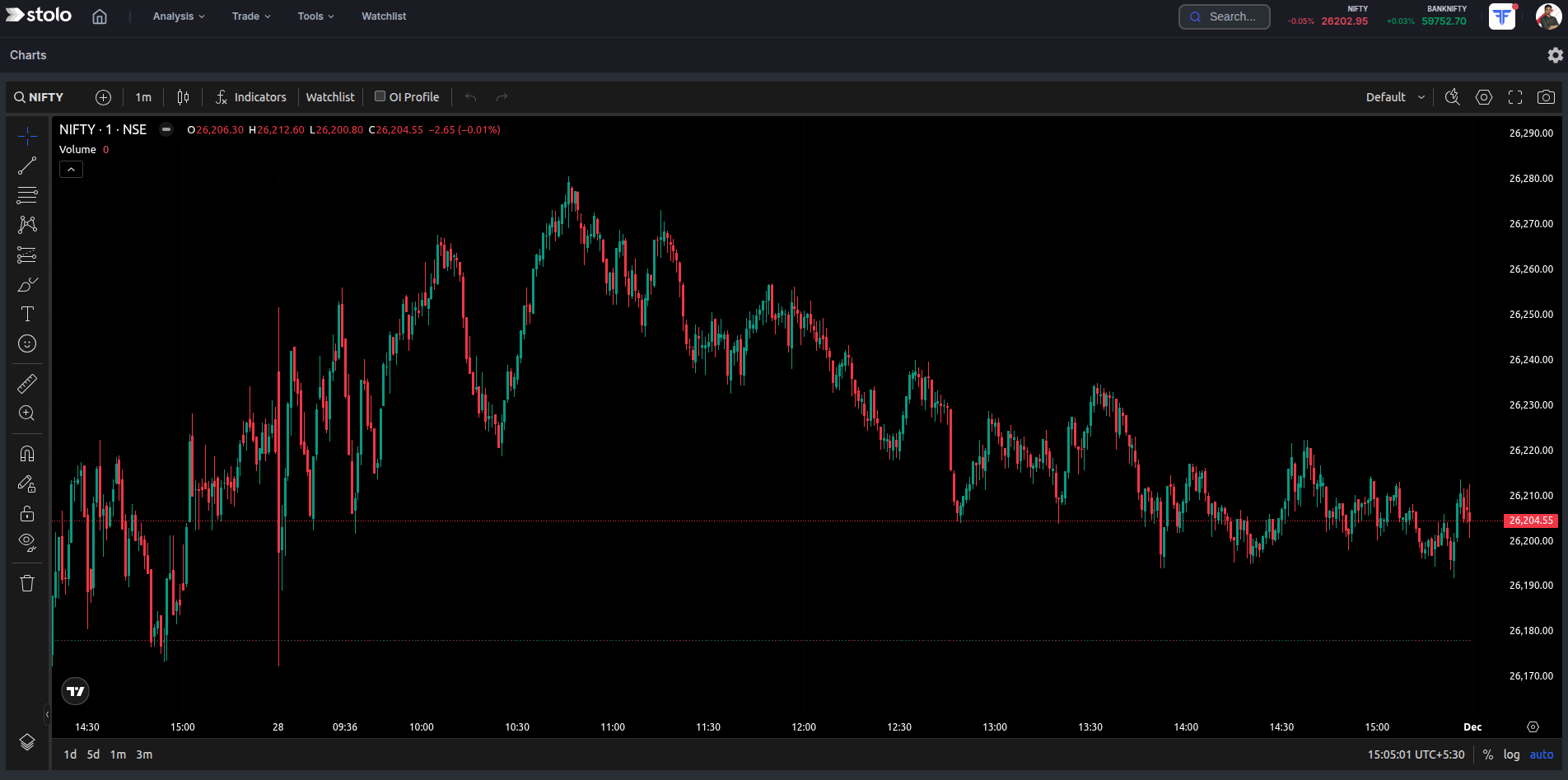
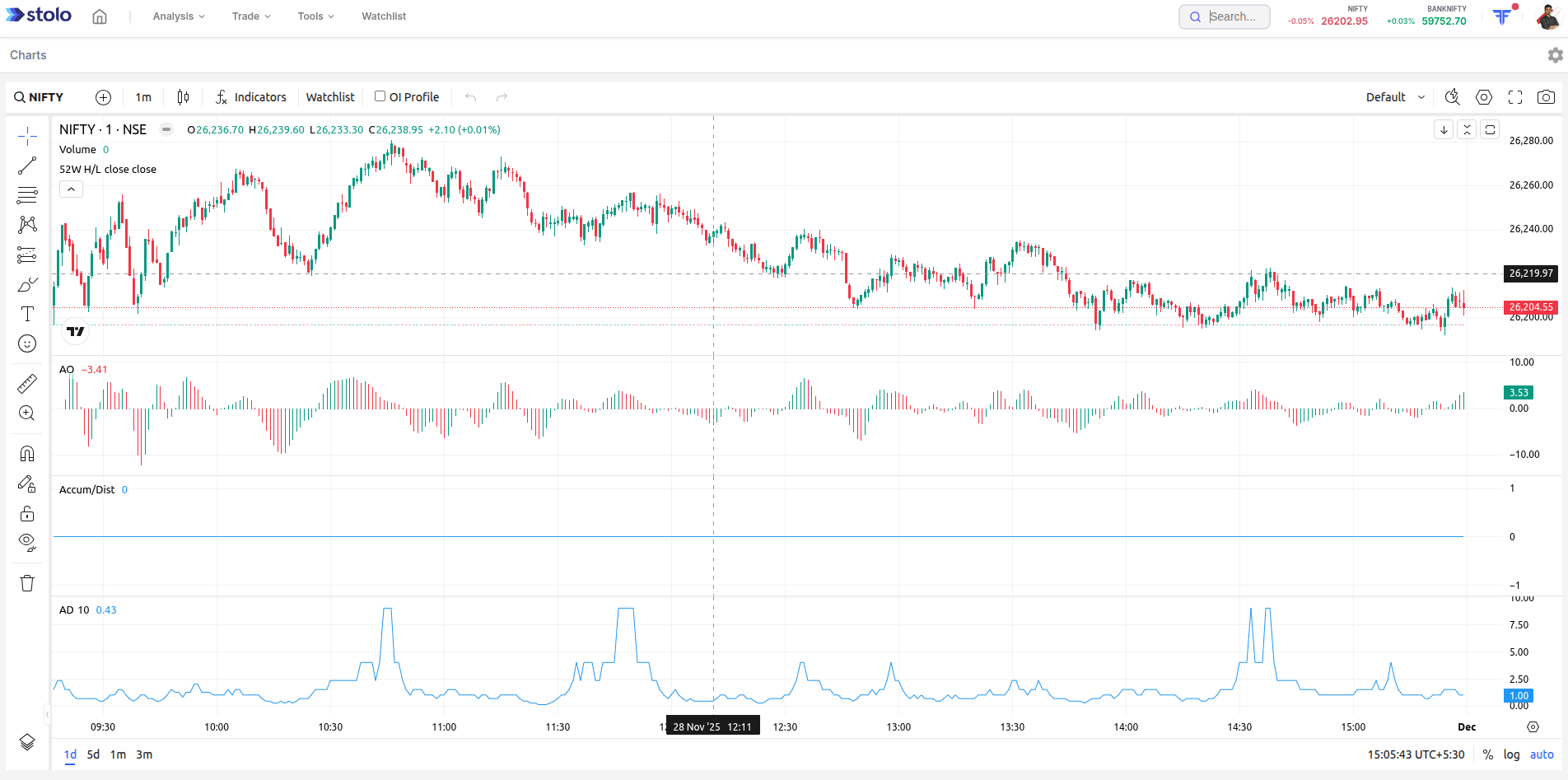
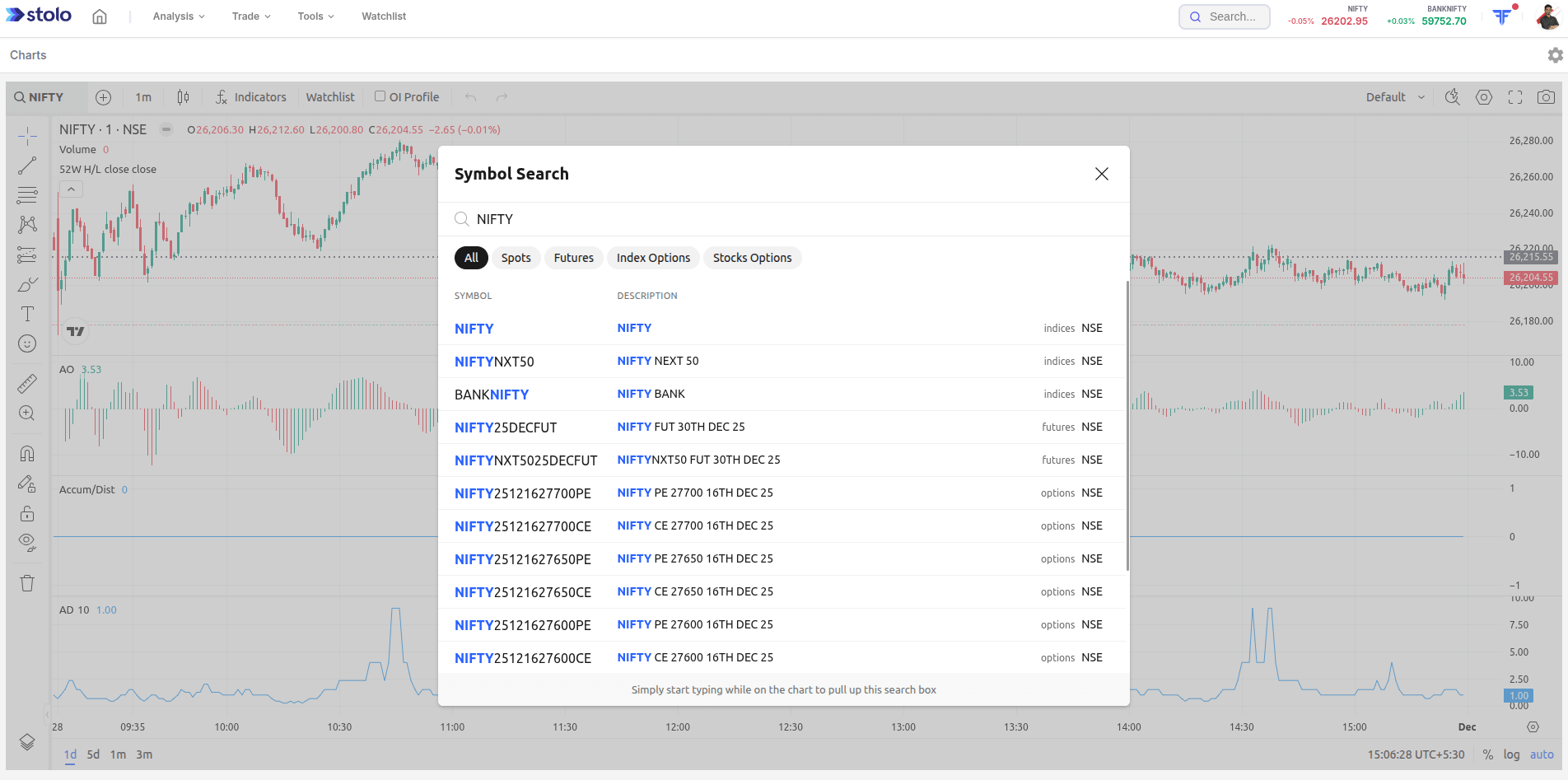
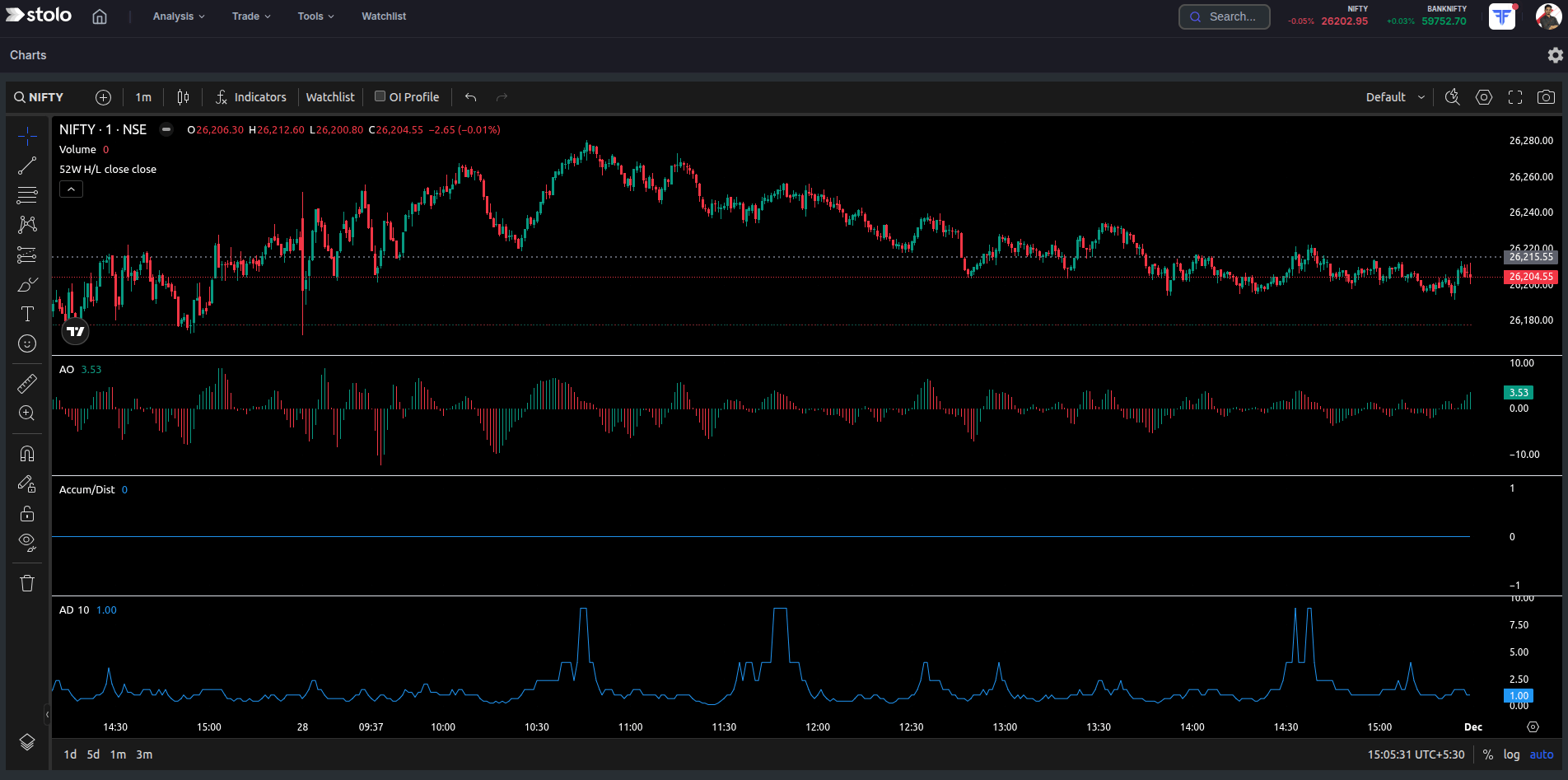
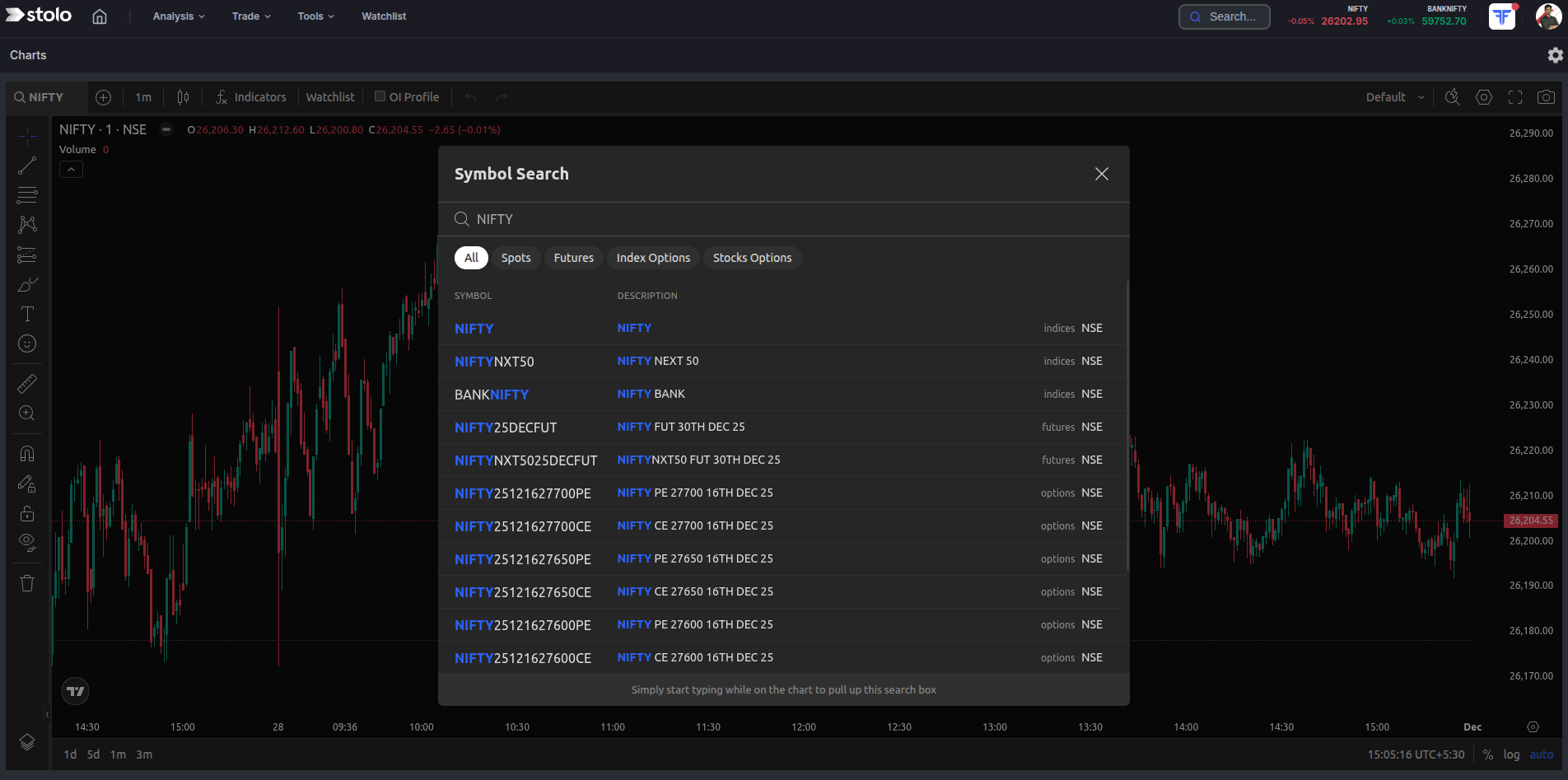
- Open any instrument in Stolo, or the Instrument Charts workspace, to get a TradingView chart.
- For a position, set a multi-pane layout with the underlying and each strike.
- Add your indicators and drawings per pane. They are saved.
- Use compare to overlay an index or sector for relative strength.
- Chart the option strike itself when your entry and stop are on the option's price.
- Move to a trade terminal to execute what the charts tell you.
The TradingView view is for analysis. Stolo does not place orders from the chart. Execute through a trade terminal, the option chain or the strategy builder.
How traders use it
- Multi-leg monitoring. One pane per leg plus the underlying, so every part of the position is visible.
- Option price action. Trade the strike's own chart when that is where your levels are.
- Multi-timeframe. Same instrument at 5-minute, 15-minute and daily to keep entries aligned with the trend.
- Relative strength. Compare an index against another to trade the leader.
Frequently asked questions
Does Stolo use real TradingView charts?
Which instruments can I chart on TradingView in Stolo?
What is multi-layout charting?
Why would I chart an option strike instead of the underlying?
Are my indicators and drawings saved?
Can I compare two instruments on one chart?
How is this different from the Instrument Charts page?
Do the charts update in real time?
Can I place a trade from the chart?
Which plan includes TradingView charts?
Chart every strike, not just the index
Use TradingView charts inside Stolo for any F&O instrument, with multi-pane layouts to watch a whole position at once.
Start with a Flexi Trial from ₹199